Debugging
The Debug tab connects to your running game and lights up the graph as it executes.
Before you start
Section titled “Before you start”Watching an instance
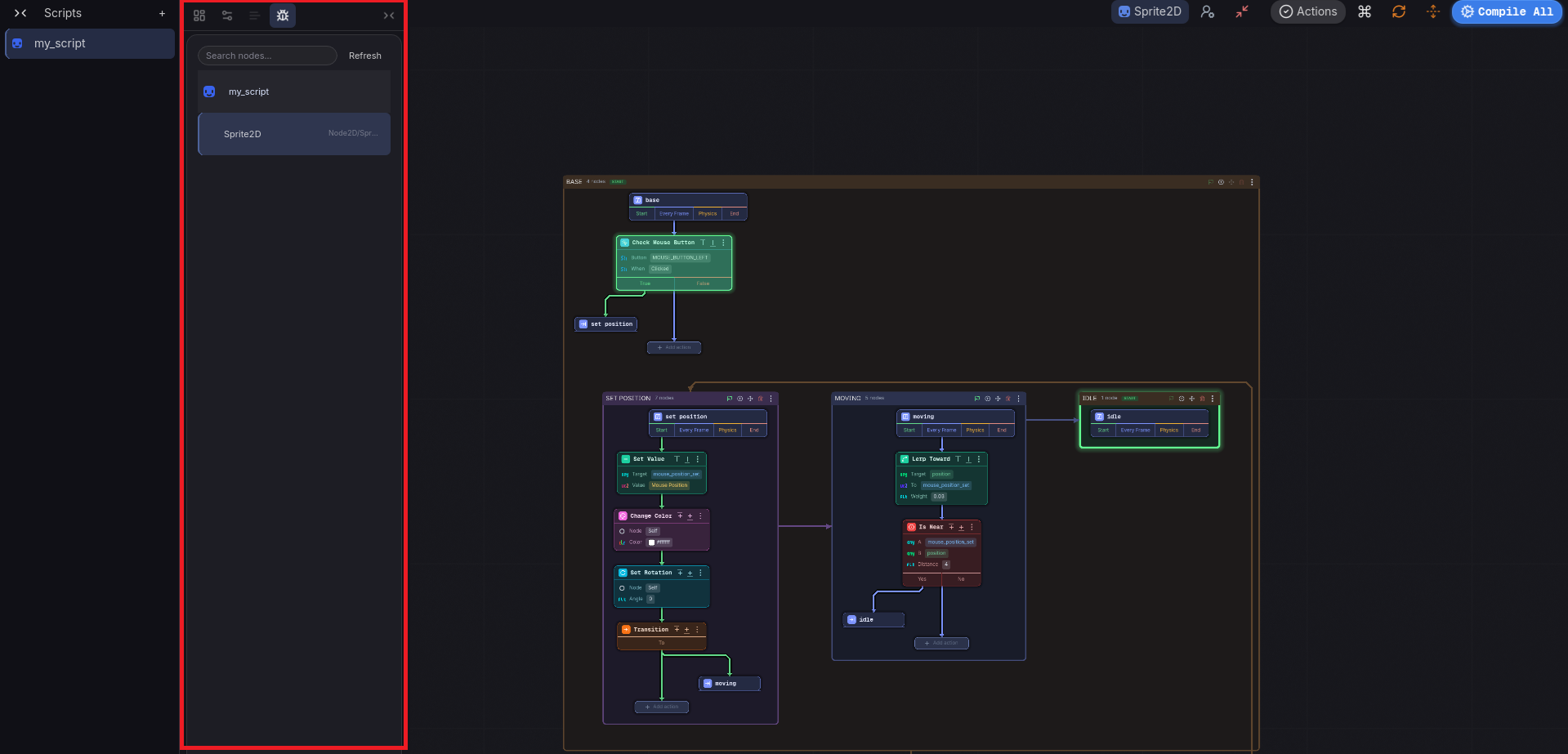
Section titled “Watching an instance”- Play the scene.
- Open the Debug tab and press Refresh (the list populates after the scene loads).
- Live node instances appear grouped by script. Select an instance to make it the debug focus.

With an instance selected, Hengo shows in real time:
- the active state glowing green on the canvas,
- the card being executed lighting up in its chain,
- transitions flashing as they fire.
Because focus is per-script, every open machine can highlight at once.