
The Canvas
The canvas is Hengo’s main screen: an auto-laid-out diagram of your machines, where each state is a frame holding a small node graph. It is both the overview and the place you work.
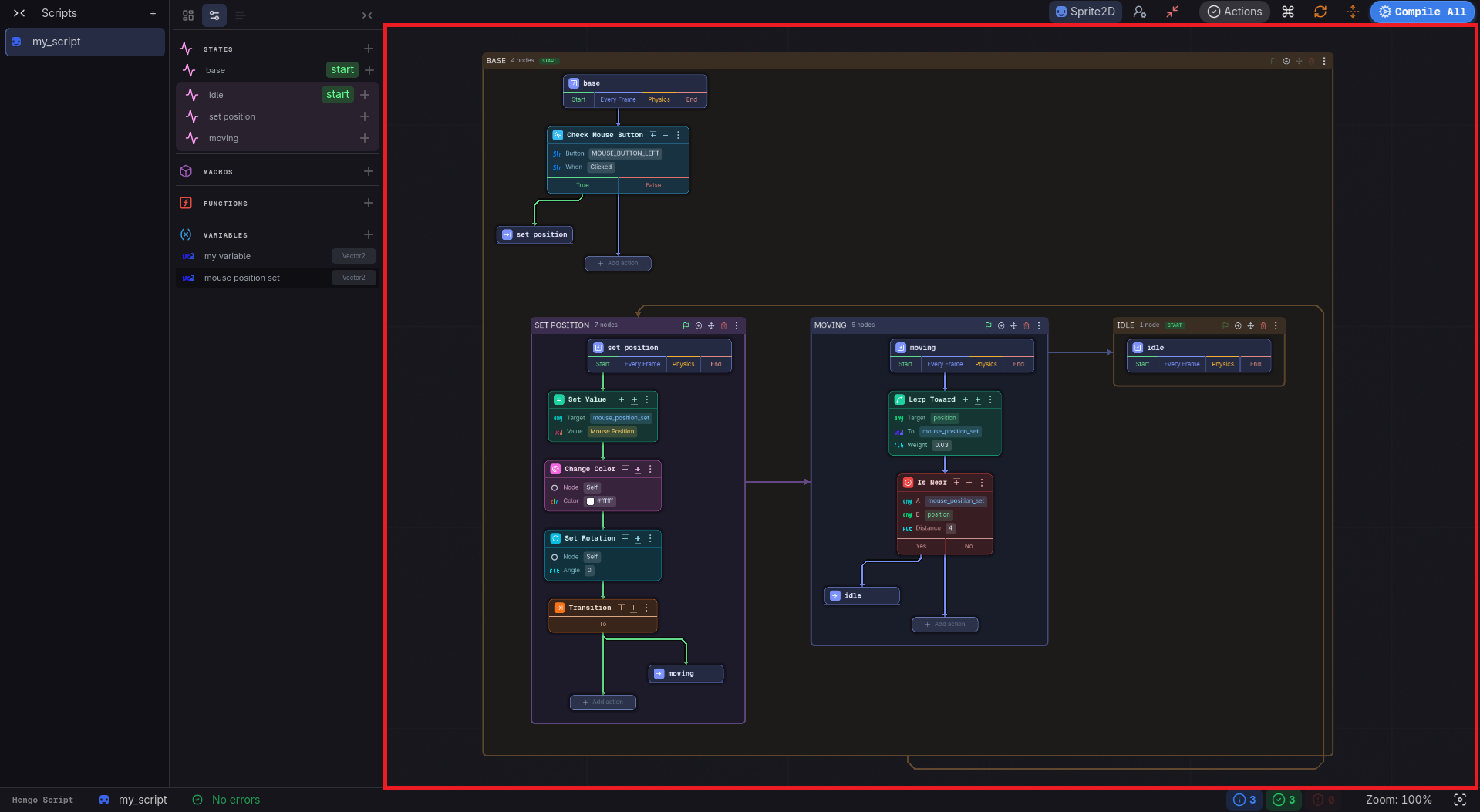
What it shows
Section titled “What it shows”- Each state is a frame: a titled band with buttons, and its graph inside.
- The graph starts at the entry node, which carries the state’s name and its four cells, Start, Every Frame, Physics and End.
- Steps chain off a cell, ending in an Add action node.
- A transition is drawn twice: as a card named after the target state, which takes you there when clicked, and as a labelled arrow between the two frames.
- A state with sub-states is a larger frame with their frames nested inside it.
- A use of a macro is a frame whose entry node has a pin per input, a cell per Entry, the four normal cells, and a cell per branch.
Navigating
Section titled “Navigating”- Pan: drag the empty canvas.
- Zoom: the mouse wheel. The status bar shows the zoom and can reset it to 100%. The camera position is remembered per script.
- Double-click the empty canvas to toggle full screen.
- Hover a state or an arrow and the connected ones highlight while the rest dims.
- Click a frame’s header band to take the view to that state; click a transition card to follow it.
- Rebuild the flow layout, in the top bar, re-lays everything out after big structural changes.
- Flow layout, next to it, switches how chains are wrapped.
Everything on a card is covered in Actions on a state, and the keys are in Keyboard Shortcuts.
The frame header buttons
Section titled “The frame header buttons”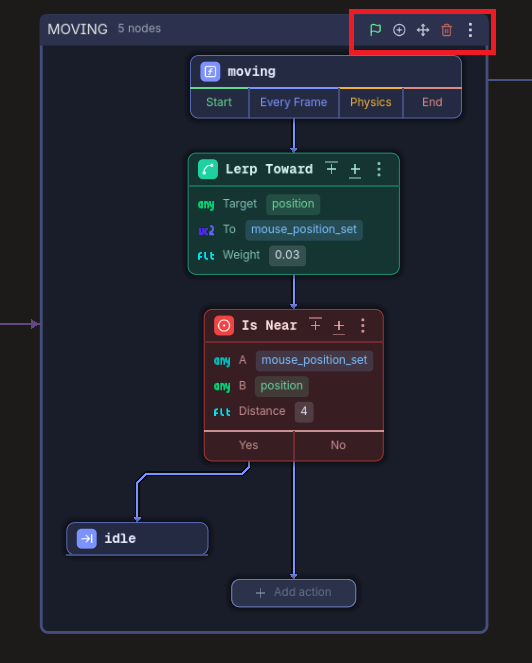
| Button | What it does |
|---|---|
| Start (flag) | Makes this the state the machine starts on |
| New sub-state | Creates a state nested inside this one |
| Move to | Moves this state into another state |
| Delete | Deletes this state, after confirming |
| State settings | The popup below |
| Open the macro this state runs | Only on a use of a macro: goes to the definition |
The base state
Section titled “The base state”Every script is created with one state already in it, and that one is the base state: it cannot be deleted and it cannot be moved into another state, so it carries neither button. Start is greyed out on whichever state is already the start.
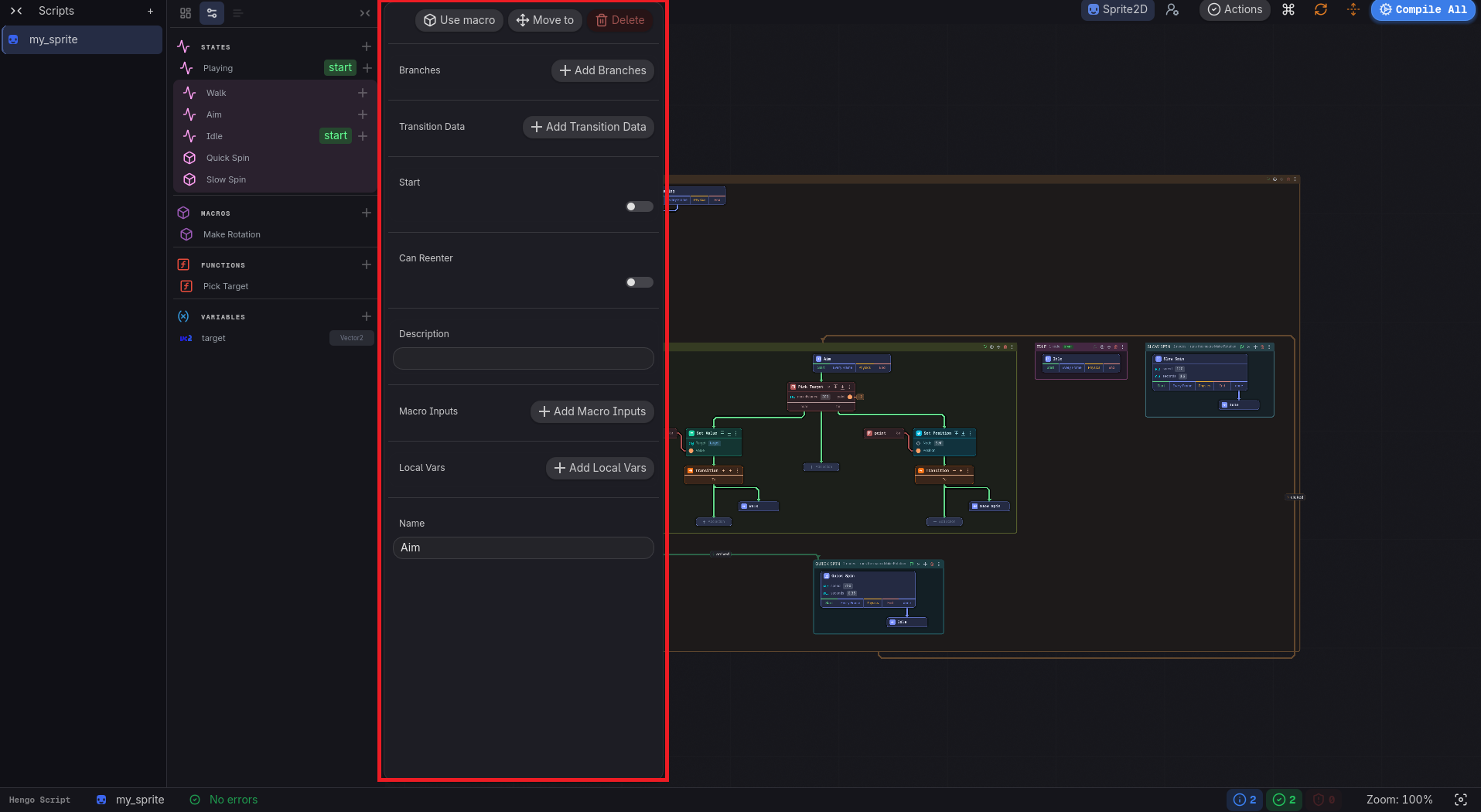
The state settings popup
Section titled “The state settings popup”Right-click a state row in the sidebar, or use the State settings button on the header.
- Use macro runs a macro inside this state, as a sub-state.
- Move to and Delete, the same as the header buttons, and both absent on the base state.
- Start does the same as the flag.
- Can Reenter: off by default. A state that is already running ignores a transition back into itself; turn this on when re-entering should restart it.
- Branches and Transition Data, what this state exposes to whatever transitions into it.
- Macro Inputs, the values a use of a macro hands in, and Local Vars, variables that belong to this state alone.
- The name and a free-text description.
The status bar’s All scripts / Current script toggle switches between the whole collection’s machines and just the active one.
While the game runs
Section titled “While the game runs”The active state glows, the card being executed lights up, and transitions flash as they fire. See Debugging.